
Logs
In the logs section, you can see the different logs you have created in your flows and for your devices - down to the second.
Many of our customers use logs to get a detailed overview of what has happened in their system, and our logging feature makes it possible to track events with high precision.
How do logs work?
Logs work by using our "log" nodes that you can find in our flow. Here you can describe the data you want to log and give it a variable if desired.
Logs work with the help of our "log"-nodes that you find in the flow editor. These nodes allow you to log specific data, either on receipt of a value, at set intervals or after a cooldown period.
You can add variables and define your own values, but as the log system is very simple in its handling of inputs and outputs, it can be challenging to figure out what can be written to the variables.
To get the most out of logs, we recommend experimenting with different logging methods and combining them with the other features of the flow editor.
Create and utilise
- First of all, you need to create a log under "logs" on app.gsmcloud.com.
- Inside Flows you need to use one of the different log nodes we have.
- You can schedule a rap root by clicking "Schedule", and you can select a time interval to be displayed by clicking "date".
- You can remove everything in the log by clicking "Clear Log" and you delete it by clicking "Delete"
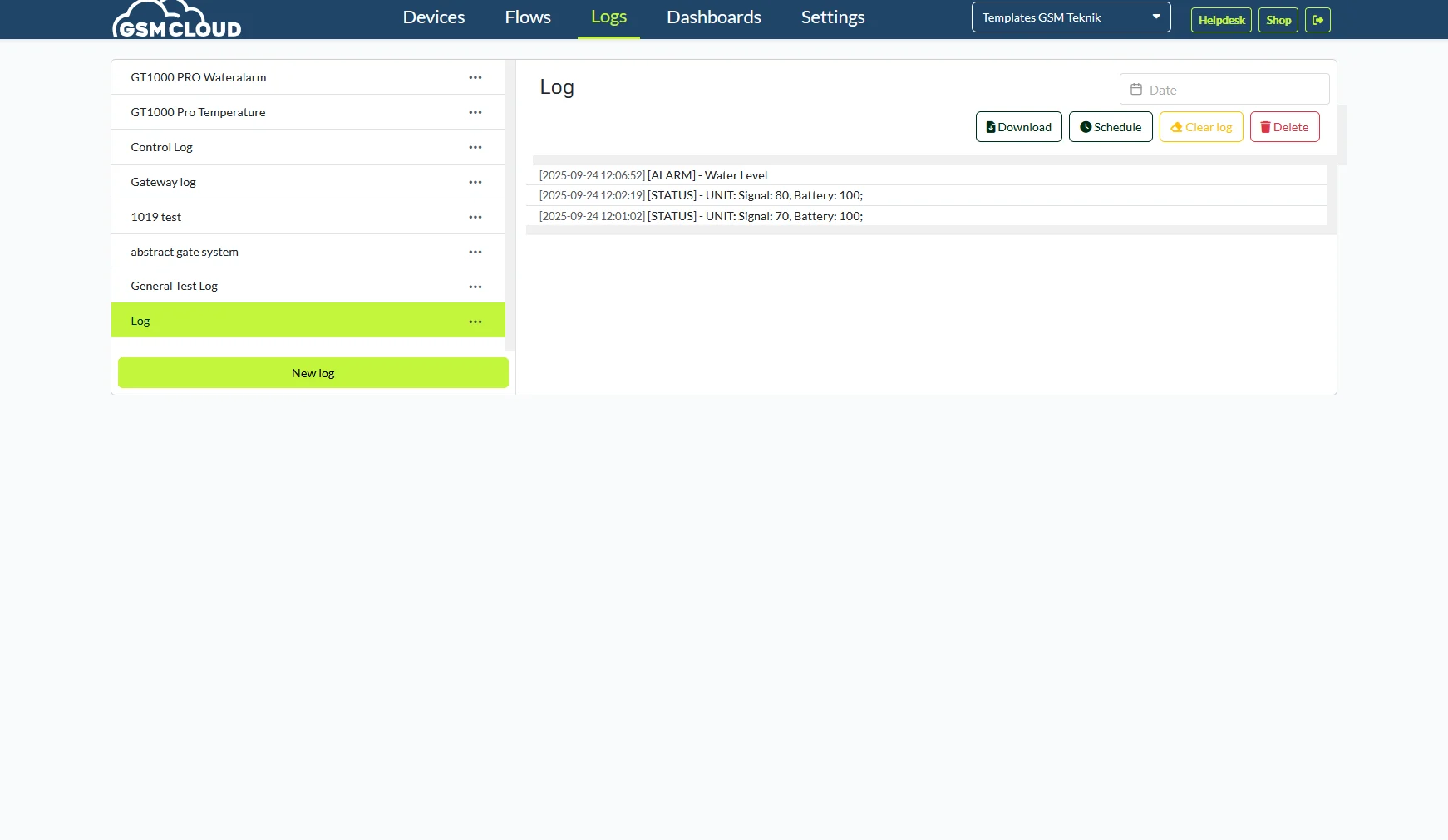
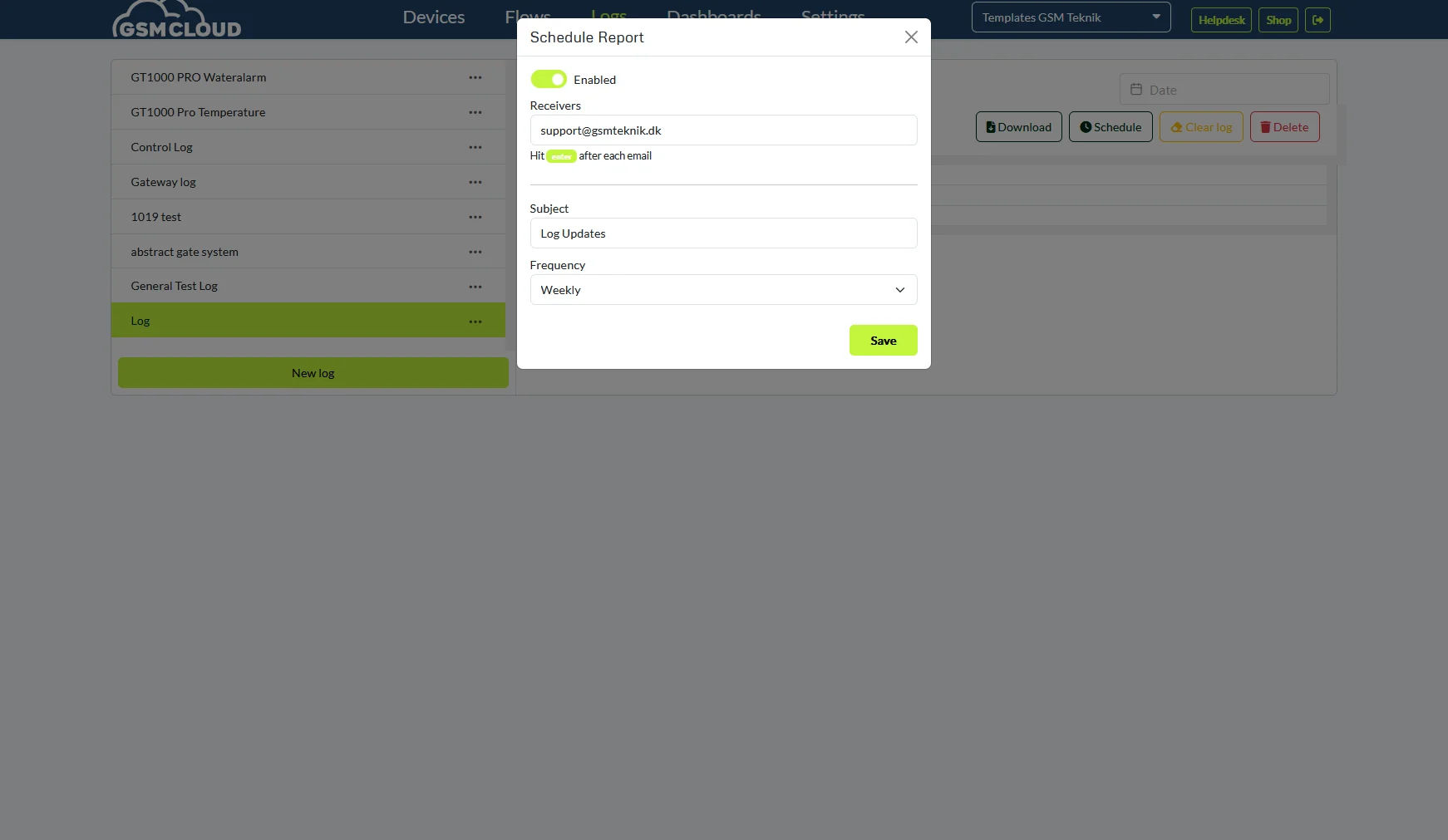
Examples of use
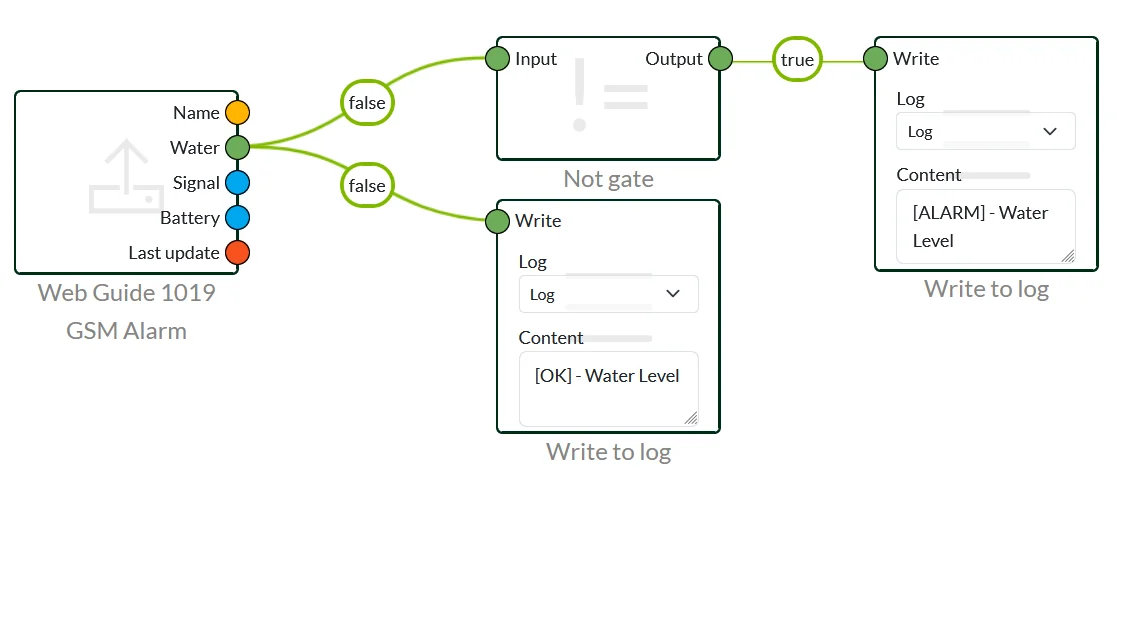
There are a few different things that can be done using logs. Log nodes generally do nothing more than send data to a log, that's their functionality. You can put dynamic data into logs so, for example, you can log temperatures that change and based on how they change.
To get dynamic data in a log, you need to create a variable in the node, which is done using "{variable_name}" This allows you to pull extra data over to your log node.
Write to Log & Write to Log with Cooldown
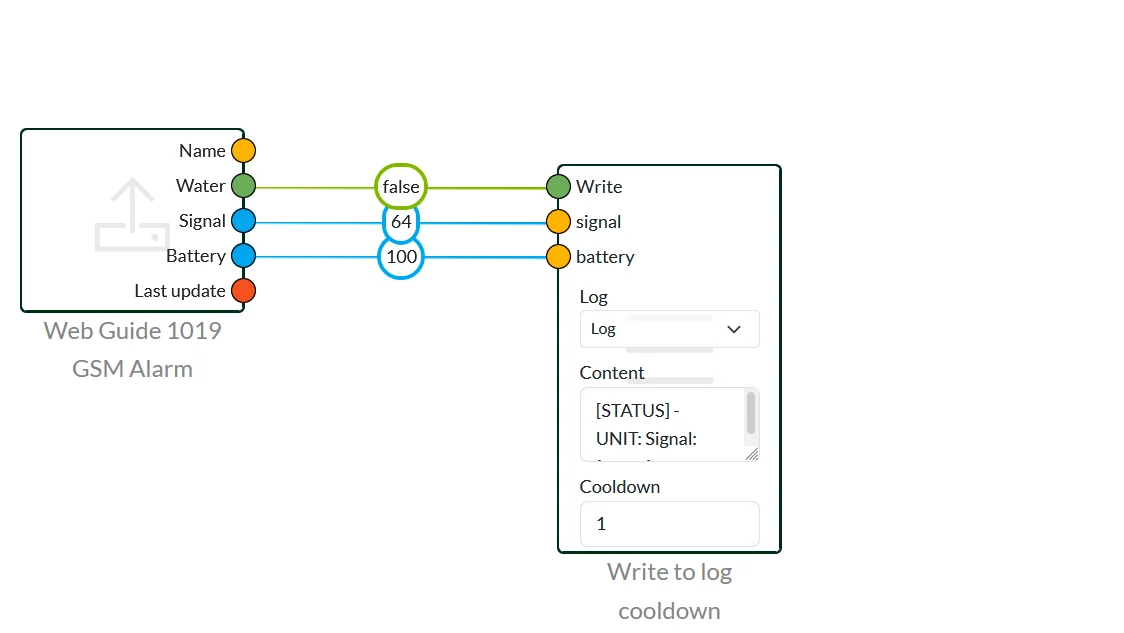
Write to Log does nothing more than write to the log, whereas Write to Log cooldown only sends 1 log message after which it goes to sleep for X amount of time. In this example it is 30min after the first time. This way you can avoid writing to the log constantly if the data changes frequently.
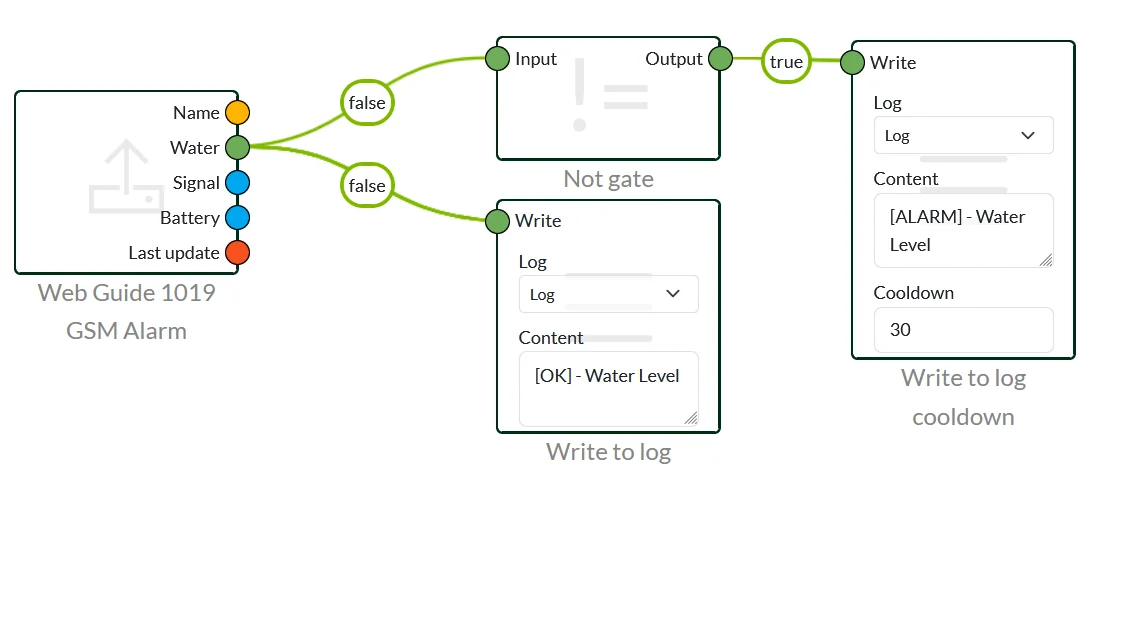
Interval and Cooldown
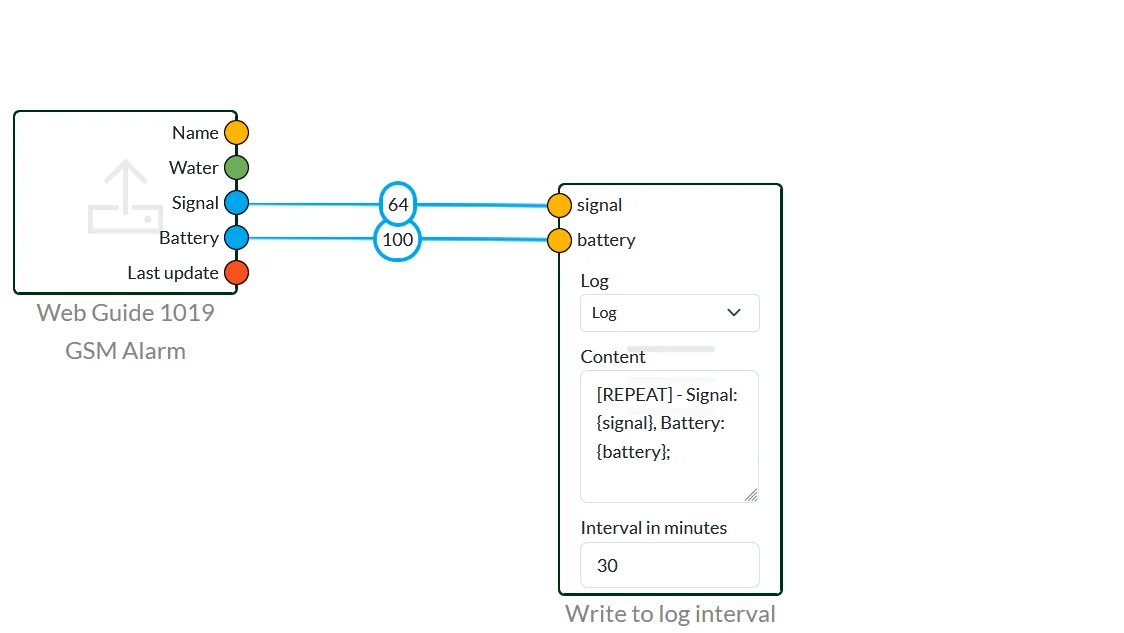
Write to Log interval writes to the log at a given interval. It does not receive a "start" signal from another node like the others do, this is a constant node and it will continue to write to the log. Variables are often used here that you want to keep track of.
Cooldown can do the same, the difference is that it needs a "start" signal. Then it writes every X minutes - used a bit more to keep your log file clean if you have data that changes frequently.
 Dansk
Dansk  English