

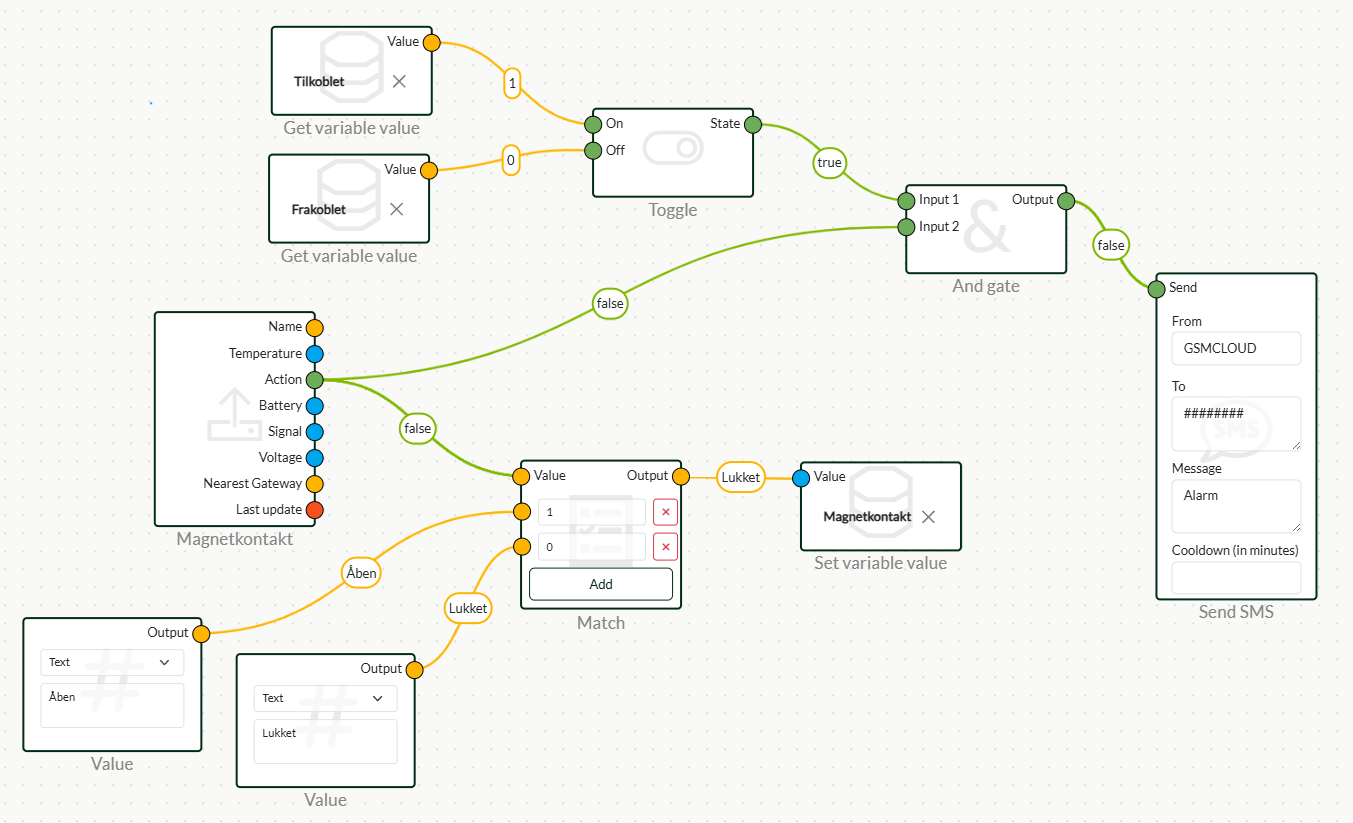
Flow setup
- Start by pulling your beacon into the flow.
- Drag four Get variable values from the Dashboard menu.
- Drag to Match from the Logic menu.
- Drag a Set variable value from the Dashboard menu
- Connect from beacon: Action to Value in the Match node, enter a 1 in the upper and a 0 in the lower.
- Drag two Values from the Logic menu and select Text, then fill with Open in one and Closed in the other and connect Open to 1 and Closed to 0 in Match.
- Create a variable value in: Set variable value and call it e.g. Magnetic contact and set it to be active in the node.
- Also, in the last two Set variable values, create one called Connected and Disconnected.
- Drag a toggle from the Logic menu and set Connected to On and Disconnected to Off.
- Drag an And gate from the Logic menu and connect from Toggle State to Input 1 on the And gate and connect from Magnet switch action to Input 2 on the And gate.
- Drag a Send SMS in from Notification and connect from And gate output to Send on Send SMS. Fill in your details and what you want the SMS to say.
Dashboard
- Tap Menu: Dashboard in the top menu.
- Tap into an existing dashboard or create a new one.
- Press Edit on the right side and select a: Button and a Value.
- Press the small nut on the Button and give it a title e.g. Alarm mode, connect the Variable value armed and disarmed to two buttons with different colours.
- Press the nut for value and give it a title such as Status and connect the Variable value to the one called Magnetic switch.
- Finish by pressing save on the right side.
Mobile viewing
- Tap share on the right side.
- Switch Allow public access on.
- With that url page, you can access your dashboard on your phone as an app.
Please note! This flow is just an example, your flow can be built according to your needs, this flow is just for inspiration.
 Dansk
Dansk  English