

Device Setup
Log
Personally, I like to see logs so I can go back in the data and possibly make an overview of the year and see when and how often an incident happens. To create a log, we need to go to logs and create a new one at the bottom of the button and name it.
You can create all the logs you need if you want to do some SoC (Separation of Concern). For example, you might want to log when the water is too high in a log so that it is separate. This way we can create a log for e.g. the device's status on different things, such as power, signal and last_update.
Dashboard
This requires us to briefly open our Dashboard Page. We want to be able to see the status of e.g. water condition, if power is on, signal worthy and last_update. Here you can decide for yourself what you want - a dashboard isn't a necessity, but it's a nice thing to have from time to time.
- Tap on the edit up in the top right corner.
- Click on the number 2 icon on the right side.
This should give you a "My Widget" - Then click on the cog - then give your widget a name e.g. "Power".
- Select a Variable
If you don't have a variable, you can just create one by pressing "Create New" and naming it. I would advise creating a "system" for how you name it if you need it for something bigger or expect a lot of variables. - Once this is done, press the cross in the top right column.
- After that Saves in the top right corner.
If you want to see a log in your Dashboard, it's the third last icon - then just select which log you want to show.
Flow
In this point, logs are not a necessity, same with Send SMS - This is what is often used but may not be necessary in your case. You can read more about the different nodes and see what suits you best.
- Inside the flow, open Devices and drag the device's "IN" out.
- We need a Not Gate, Pulse, Toggle and an "OUT" from Devices
- “IN 1" must be drawn to our Not Gate, Then we need to subtract Emergency Gate to Pulse, then to Toggle(on) and finally into buzzer.
- Go back to Emergency Gate and drag an extra string to the LED on "OUT".
- Pull one Write To Log get out and relax "IN 1″ Up to it. Select your log and write what you want it to say.
- Step 2 "Send SMS" Nodes out, Read more about the node here. One node must be switched on "IN 1" and the other needs to be connected to our Not Gate. The one set to "IN 1" is for when the water is too high and the one set for our Emergency Gate is if the water is OK again.
- Make another extra Write To Log and drop it on our Emergency Gate.
Then your flow should be up and running.
Optional extras
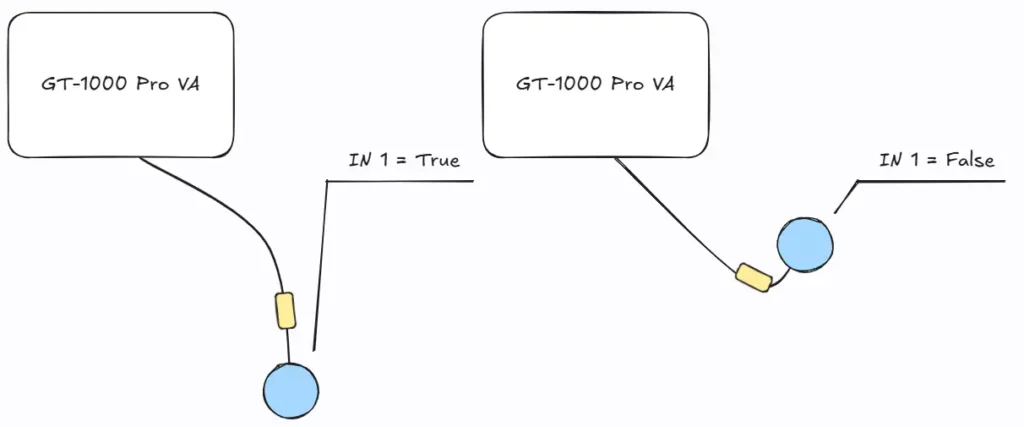
The float will always be true if the water is okay. If the water is not okay then it will go false. This can be different if you don't use floaters from us, because the wires may have opposite colours or different colours. The blue wire always goes to 12V+ and the black wire goes to IN1

 Dansk
Dansk  English